

Cookie consent for Magento stores:
How to integrate CCM19
Magento is one of the world's leading e-commerce platforms and offers flexible solutions for online stores of all sizes. To ensure that your store is not only technically powerful but also GDPR-compliant, you need a Cookie Consent Manager.
CCM19 is the ideal solution for equipping Magento websites with a cookie banner and managing consent in compliance with the GDPR - without negatively impacting the loading time of your store and with full control over your users' consent logs.
Does your website have a GDPR problem? Check now for free!
How high is the risk of fines for your website? Enter your website address now and find out which cookies and third-party services pose a risk
Advantages of the CCM19 integration in Magento
- Seamless integration: Easy insertion of the CCM19 script into Magento without much effort.
- Optimized performance: CCM19 has been specially optimized for fast loading times so that your conversion rate is not affected.
- Customized banner design: Adapt the design of the cookie banner to the layout of your store to provide a consistent user experience.
- Legal security: CCM19 ensures that your Magento store fully complies with the legal requirements of the GDPR.
CCM19 for Magento: step-by-step installation guide
- Create CCM19 account and set up domain: If you do not yet have an account with CCM19, you can register here free of charge. After registering, create your domain in the project administration by following the setup instructions. At the end of this process, you will receive a customized Javascript code that you will need for the integration.
- Customizing the Magento template via FTP: As Magento does not offer a direct option in the standard backend to insert the CCM19 script in the upper area of the page header, you must edit the corresponding template file manually via FTP.
- Connect to your web server via an FTP client (e.g. FileZilla).
- Navigate to the following path in your Magento installation:
/app/design/frontend/rwd/default/template/page/html/head.phtml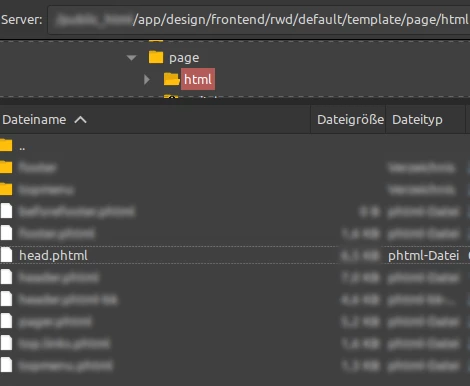
- Download the file and open it with a text editor (e.g. Notepad++).
- Insert the Javascript code from the CCM19 dashboard in the
<head> areaof the file. - Save the file and upload it back to the server via FTP.

Note: If you cannot find the file in this path, use a theme other than the standard "rwd" theme. In this case, check the template path of your active theme.
- Save changes and clear cache: Make sure that the changed file has been successfully uploaded to the server. Then clear the cache of your Magento site to ensure that the changes are applied.
- Check setup: After these steps, CCM19 should be actively integrated on your Magento site and the cookie banner should appear as desired.
Common problems and solutions
The cookie banner does not appear: Make sure that the CCM19 script has been correctly integrated in the HTML header and that there is no error in the cache. Also check that the Javascript code has been completely transferred and that there are no typing errors.
External scripts are not blocked: Check in the CCM19 dashboard whether the corresponding scripts are activated. Also make sure that the scripts have been assigned to the correct categories.
If you have any questions or require assistance, our support team will be happy to help you. You can reach us both by phone and via our chat - which is staffed exclusively by real people, not bots.
Our team will be happy to help you solve your problem quickly and easily. You can contact support directly in the CCM19 dashboard or via our website.
Does your website have a GDPR problem? Check now for free!
How high is the risk of fines for your website? Enter your website address now and find out which cookies and third-party services pose a risk
Cookie banner - comprehensively explained
As a website operator, you must provide a cookie banner to c... » weiter
