

What do my cookies look like?
Just take a look at the cookies that have already been saved on your computer. We will show you how to do this here:
In the Firefox browser, you can find your cookies as follows:
Simply click on the so-called "hamburger menu" in the top right-hand corner of your browser. The browser is the program you use to surf the Internet, in this case the "Firefox" browser. If you require a larger view of our screenshots, simply click on the respective image.
Select "Data protection and security".

Under the "Privacy and security" button, click on the "Manage data" button in the "Cookies and website data" section.

You will now see a list of cookies and their contents on your computer.

In the Chrome browser, you can find the cookies as follows:
In the chrome browser, simply click on the three overlapping dots at the top right. The browser is the program you use to surf the Internet, in this case the "Chrome" browser.

Select the "Privacy and security" section.

Now select the "Website settings" section in the "Privacy and security" area.

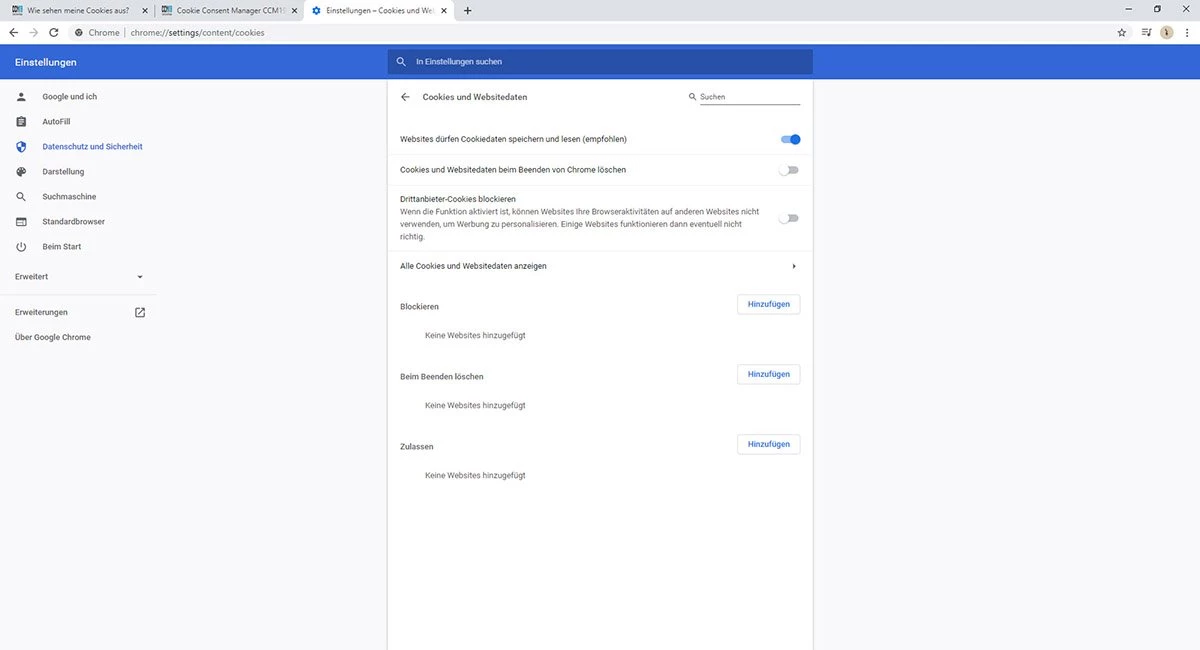
Select the "Cookies and website data" section.
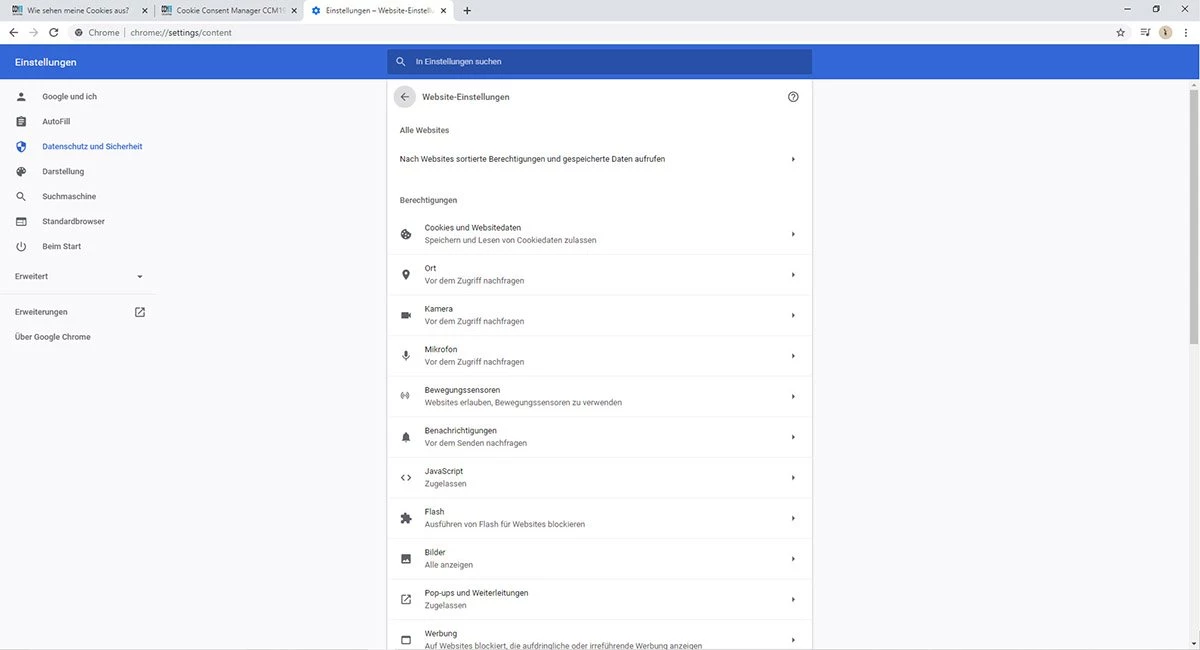
In the "Cookies and website data" button, you can now display "All cookies and website data".
Here you can find out what cookies are, how they work and what they are used for.