

Iframe blocker from CCM19:
How to embed YouTube videos or Google Maps on your website in compliance with the GDPR
Why do you need to block content such as YouTube videos?
YouTube videos or other services such as Google Maps must be blocked on websites in order to comply with GDPR data protection regulations.
- Services such as YouTube set cookies and collect personal data as soon as a video is embedded on a website via an iframe. This data may include the user's IP address, browser information or click behavior.
- The GDPR stipulates that the consent of website visitors must be obtained before personal data can be processed. It is therefore necessary to block YouTube videos until the user has given their consent.
- YouTube videos must also be blocked in the no-cookie variant because the connection to the YouTube server already requires consent from the website visitor.
CCM19's iframe blocking offers the ideal solution for this. It allows you to control the loading of YouTube videos or other external content on your website and ensure that no personal data is transferred without the explicit consent of your website visitors.
Update your CCM19 tariff now to be able to embed YouTube videos in compliance with the law
To be able to use the iframe blocking function, you need at least the Starter plan, which you can activate for your account as follows
Step 1: Log in to your CCM19 user account
Step 2: Navigate to the menu item "My tariff"
- Once you have logged into your account, navigate to the "My tariff" menu item in the dashboard. Here you can view the various available tariffs.
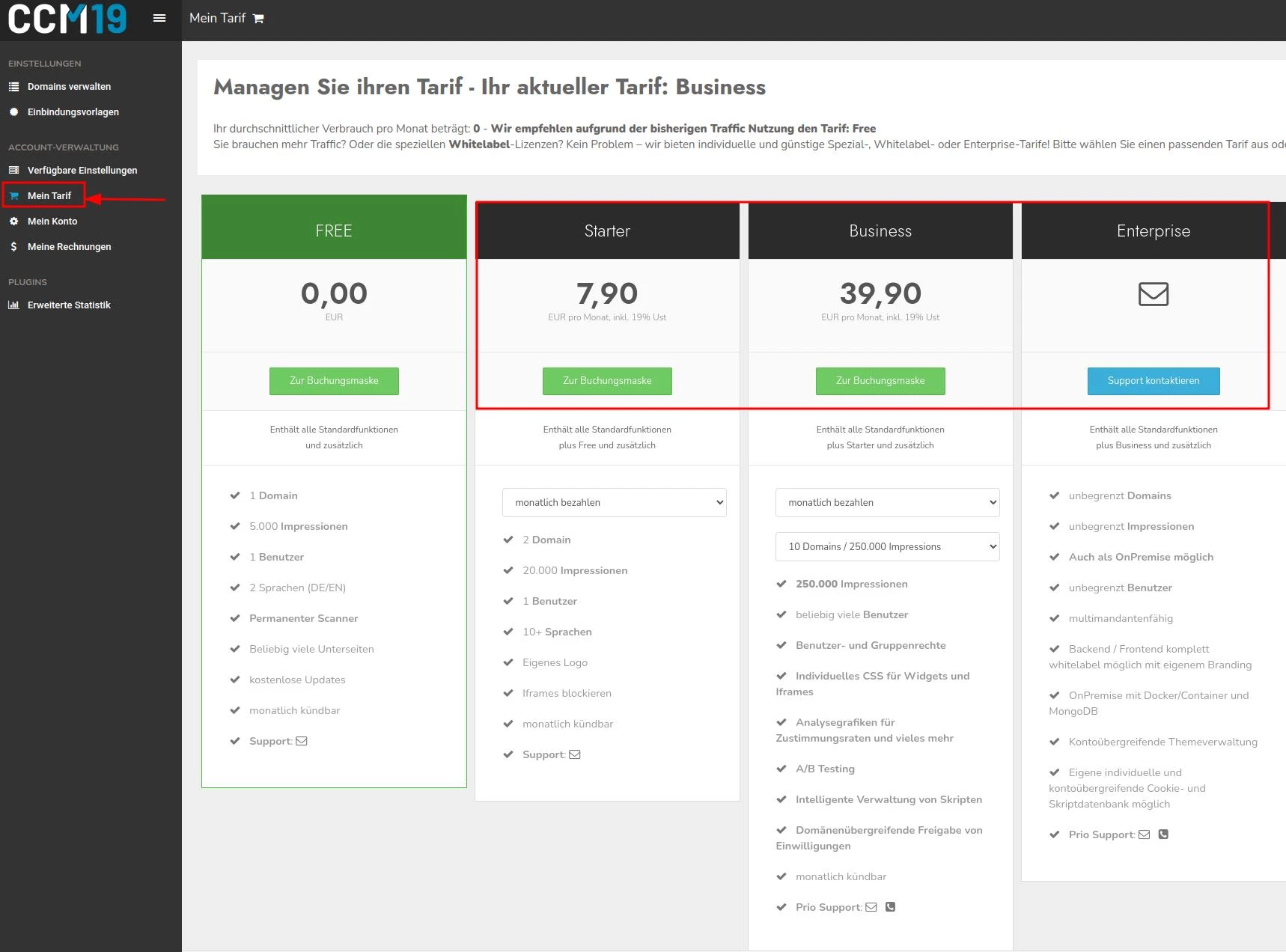
Step 3: Select and upgrade to the Starter plan or higher
Select the Starter plan or a higher plan that includes the iframe blocking function. Click on "Go to booking screen" to start the booking process. Follow the instructions to enter the payment information and complete the upgrade.
Once you have completed these steps, you can use the iframe blocking feature and ensure that your website embeds YouTube videos in accordance with the
GDPR guidelines.
Video guide: How to embed GDPR-compliant YouTube videos on your website
We have created a video guide that shows you how to embed YouTube videos on your website in a GDPR-compliant manner.
Please note that this process is also transferable to other integrations, such as Google Maps, and only the example with YouTube videos is shown here.
This video guides you step by step through the process and supplements the written explanations.
<"Log in to your CCM19 account and activate the Iframe Blocker under "My tariffs""
Instructions: How to activate iframe blocking in CCM19
After you have upgraded your CCM19 account, you can place your YouTube videos on your website in a GDPR-compliant manner.
Please note that this process is also transferable to other integrations, such as Google Maps, and only the example with YouTube videos is shown here.
Step 1: Activate iframe blocking
- If you are logged into CCM19, click on the domain for which you want to embed the YouTube video under "List of all domains".
- Navigate to "Iframes" in the menu on the left, where you will find the settings for the iframe blocker.
- In the "Activate iframe blocking" section, you can select and activate the function.
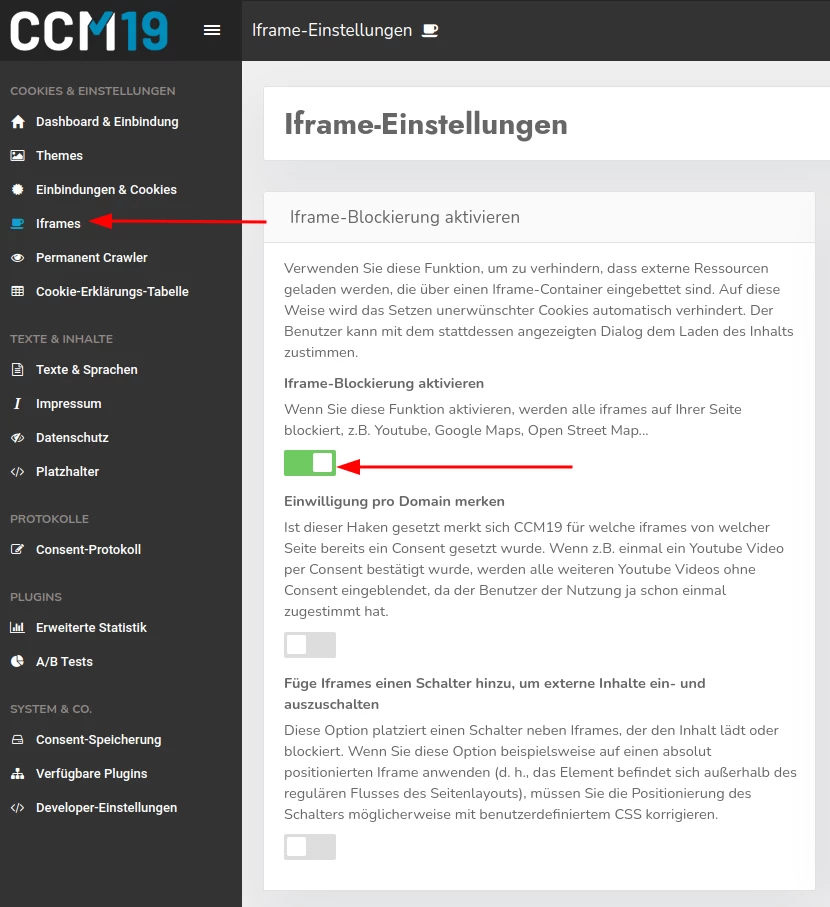
This setting ensures that external content embedded via iframe is not automatically displayed. This initially prevents the connection to external servers from being established. After the website visitor clicks on "Accept all" in the cookie banner, all blocked iframes are also disabled.
In addition, there are two further options that you can activate:
Remember consent per domain
- This function makes it easier for your users by only having to agree to the display of YouTube videos once. After that, all further YouTube videos on your domain will be activated automatically.
- This setting improves the user experience by eliminating the need for multiple consents. This is especially useful for websites with many embedded videos.
Add a switch to Iframes to turn external content on and off
- This option adds a checkbox to all videos to show or block the video. This allows your visitors to manually load or block YouTube videos, providing additional control and transparency over the embedded content.
- This setting gives users the ability to re-block previously unblocked content by unchecking a video.
If you have any questions or need assistance with the setup, please do not hesitate to contact us. We will be happy to help you.
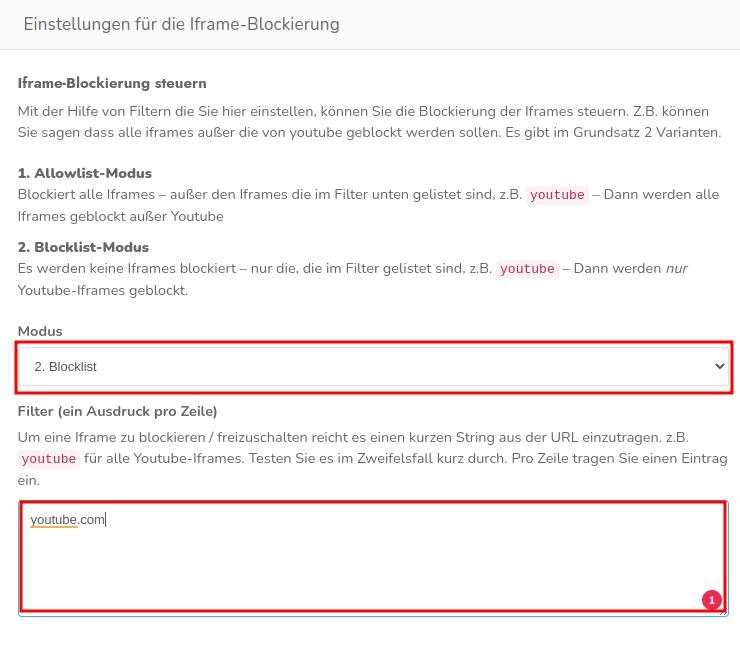
Step 2: Settings for iframe blocking
- Set the mode to "2nd blocklist".
- Then enter "youtube.com" in the filter.
Step 3: Add entry for YouTube under "Integrations & Cookies"
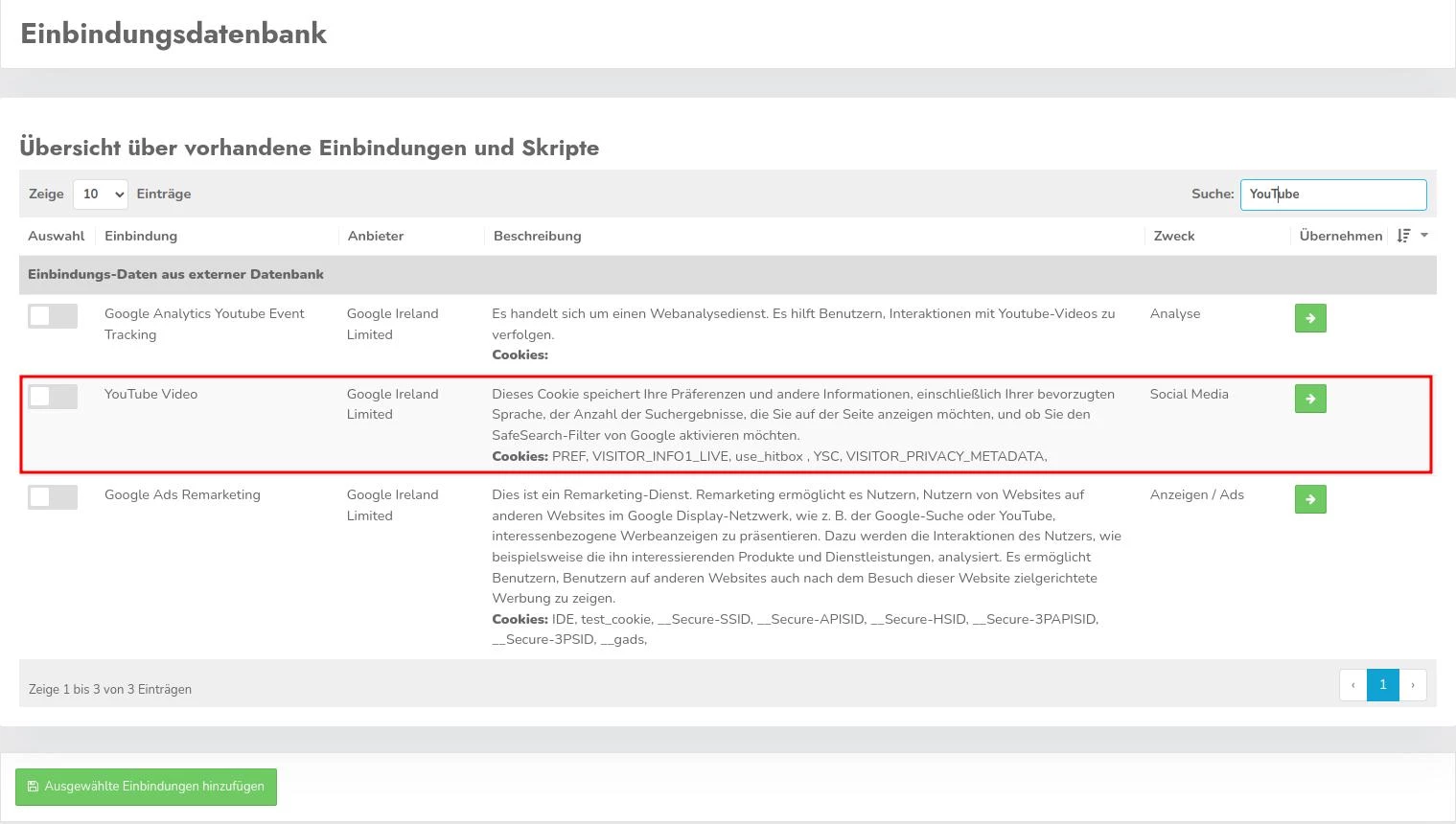
Call up the menu item "Integrations & Cookies". If you can already find an entry for "YouTube videos" here, you do not need to do anything else. If the "YouTube videos" entry has not yet been added,
- click on the blue button "Entry from database" and
- enter "YouTube" in the search bar.
- Then click on the green arrow in the "YouTube videos" line to add the desired service.
- You will now be redirected to "Create integration".
- Then simply click on the "Save and close" button and all videos that have been integrated should now be blocked until your website visitors have given their consent.
Checking your settings
After you have activated the iframe blocking function, please check whether the setup was successful by calling up an embedded YouTube video on your website. The following message should appear:
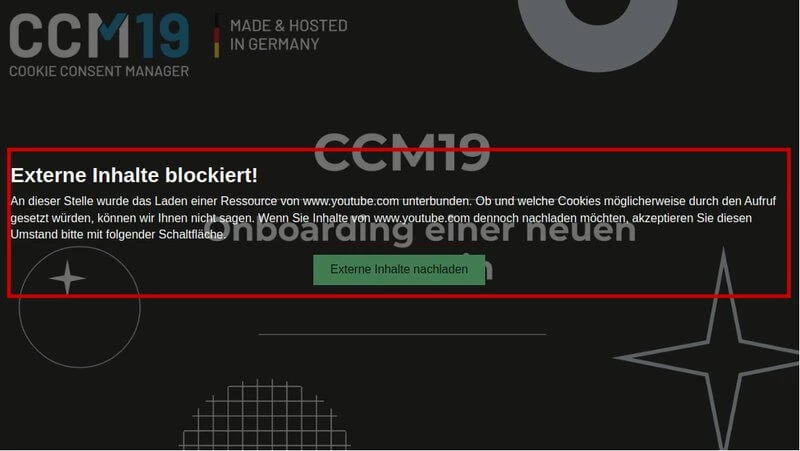
- This confirms that the videos will be blocked until the user gives their explicit consent.
If this message does not appear or you are experiencing other difficulties, please do not hesitate to contact the support team. We will be happy to help you to ensure that everything is working correctly.
"Log in to your CCM19 account and activate the Iframe Blocker under "My tariffs""